
Tickets allow you to organize all customer inquiries in one place and track trends over time. Individual tickets can be created from the ticket index page, contact record, or communication inbox. You can also automate the process with workflows and s
Using tickets allows you to organize all customer inquiries in one place and track trends over time. You can create individual tickets from the ticket index page, contact records, and communication inbox. You can also automate the process using workflows and support forms.
After creating tickets, refer to the guide on how to create a dashboard for ticket reporting.
To create a new ticket, go to the ticket index page where you can easily generate tickets.
- To access the ticket feature in your HubSpot account, follow these steps: navigate to the "Service" tab and then click on "Tickets".
- Click on the "Create Ticket" button located in the upper right corner.
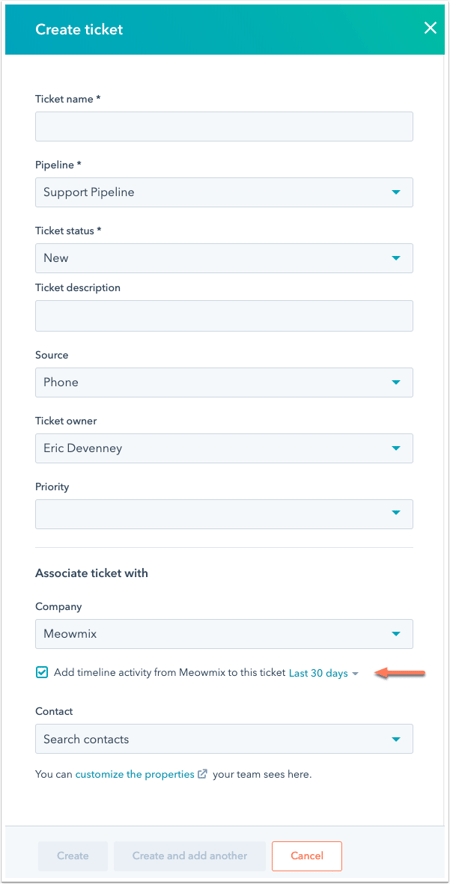
- In the right panel, you can input the details of the ticket. If you want to customize the properties displayed here, simply click on "Customize Properties" at the bottom. By default, the following fields are required.
-
Ticket Name: Give this ticket a name that clearly describes its content.
-
Pipeline: Assign this ticket to a specific ticket pipeline that you have created.
-
Ticket Status: Choose a specific ticket stage from the selected pipeline.
-
- To associate a company or contact with a ticket, click on the "Company" dropdown menu and the "Contact" dropdown menu to search for the respective company or contact. In this panel, you can learn how to link activities from relevant companies or contacts to the ticket timeline.
Creating Tickets from Records
To create a ticket from a record that you want to associate with it:
- Click on the "+Add" button in the "Ticket" section on the right panel of the record.

- To create a new ticket, follow these steps.
- To create a new ticket, go to the "Create Ticket" tab and provide the necessary details for the new ticket. By default, tickets are associated with contact or company records. You can learn how to retrieve timeline activities from contact and company records. Once you have entered all the required information, click "Create" to generate the new ticket. The new ticket will be linked to the record. You can find more details on the various activities that can be associated with different records.
- After you have finished, click on "Create". This will generate a new ticket.
A new ticket will be linked to the record, allowing you to associate various activities with different records. You can find more information on the specific activities that can be associated with different records.
Creating Tickets from the Communication Inbox
You can create tickets directly from the communication inbox, where all your customer conversations are received.
- Connect your HubSpot forms to the inbox, making sure to include the ticket properties in the form. When the form is submitted, a ticket will be automatically created in your account. You can also reply to visitor inquiries directly in the communication inbox. We will explain how to add forms to your knowledge base, website, landing pages, or external web pages.

- Create tickets from newly received emails sent to your team's email account. When this setting is enabled, tickets will also be created for email threads that have been manually marked as not spam.

- If you are using a Facebook Messenger account, you can connect it and create a chat flow for the Messenger bot. Utilize the "Send Ticket" action to automatically send tickets.
To view email and form channels connected to your ticket pipeline, follow these steps:
1. Click on the "Settings" icon displayed in the navigation bar within your HubSpot account.
2. Navigate to "Inbox" > "Inbox" in the left sidebar menu.
3. In the "Connected Channels" section, you will see the connected ticket pipeline displayed in the "Destination" column. Click on the name of the pipeline to edit its settings.

Create tickets through workflows (available in Service Hub Professional and Enterprise)
By setting up workflows, you can automatically create tickets based on specific triggers. Learn more about adding actions to workflows and using the "Create Ticket" action by referring to our guide on creating tickets through workflows.